
Rotate a Sideways Downloaded Video Without Losing Track of the Original
A sideways video and a vertical video are not the same problem. If a person looks upright but the picture leaves space on a wide screen, the recording may already be correct. If the person is lying across the screen, rotation may help. Before editing a file obtained through Y2Mate, open the completed download and decide which situation you actually have. This simple check can save you from turning a perfectly good portrait recording into a new problem.
The steps below concern a local video that you own or have permission to edit. QuickTime Player on Mac handles the editing stage; the downloader does not rotate the source. Keep a separate original so you can compare the result and start again if necessary.
Check orientation before choosing a fix
Look for something that gives the picture a clear direction: a horizon, a doorway, a face, or readable text. Do not judge orientation from the shape of the player window alone. A tall window can contain correctly framed portrait video, and a wide window can contain sideways footage. Watch a short section rather than relying on a thumbnail, which may not represent the whole recording.
Next, compare the local file with the source video. If both look sideways, the orientation issue may already be part of the recording. If only one player displays it incorrectly, try another trusted player before changing the file. That comparison is a troubleshooting step, not proof that the video needs re-encoding.
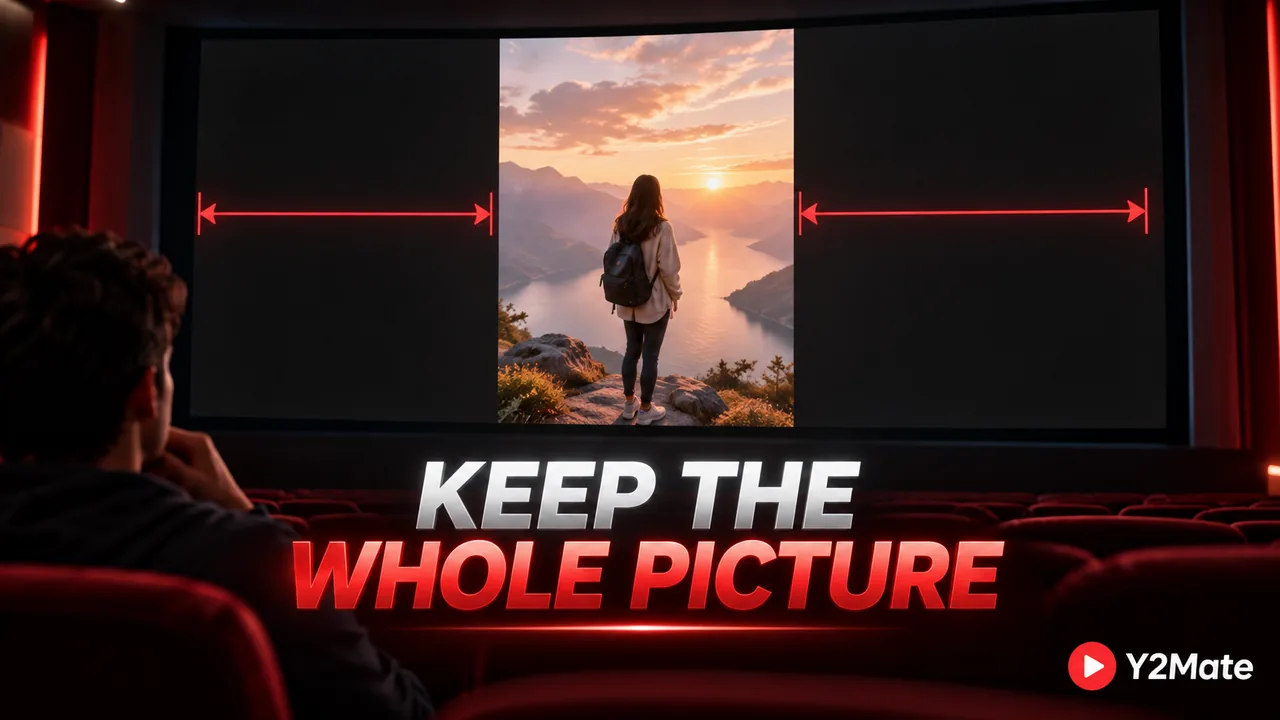
If the actual complaint is empty space beside an upright image, read about vertical video and black bars. Rotating, cropping, and filling a screen are different operations. Filling the screen can hide details at the edges; rotation changes which direction the image faces.
Make a clearly named working copy
Put the original in a folder where you can identify it easily. Duplicate it and name the new copy something descriptive, such as rehearsal-orientation-test. Avoid opening several nearly identical files from different folders at once. A clear name matters more than clever naming because it helps you distinguish the untouched file from the one you are editing.
Do not change the extension to make the file appear to be a different format. A name ending in MP4 does not establish how the file is encoded. If you are unsure what you downloaded, inspect its properties first using QuickTime Movie Inspector. Note the duration and dimensions so you have a useful comparison after saving.
Rotate the selected clip in QuickTime
Open your working copy in QuickTime Player. Choose View, then Show Clips, and select the clip you intend to change. The selected clip has a yellow outline. In the Edit menu, use the command to rotate left or right, then finish with Done. A sideways image generally needs a quarter-turn in the appropriate direction; check the picture instead of repeatedly clicking until it seems close.
Rotation is different from flipping. A horizontal flip produces a mirror image, which can reverse visible writing or change the apparent position of objects. Do not select it merely because it sits near the rotation commands. If your movie contains several clips, confirm that you selected the intended material rather than assuming every clip received the same change.
Preview both the beginning and a later section. For example, a recording might begin with a title card in one orientation and continue with camera footage in another. Correcting the first frame alone does not tell you whether the rest of the movie is ready.
Save and verify the actual output
Save the edited copy under a distinct name and reopen that saved file. Checking the editor preview is useful, but checking the saved result is the real completion test. Confirm its orientation, duration, sound, and readable text. Test it in the player where you plan to watch it, especially if you are moving it to another device.
Do not assume every save or export preserves the original container or avoids re-encoding. QuickTime's documented movie export produces MOV rather than an MP4 export option. If an MP4 file is required elsewhere, inspect the result and that destination's requirements instead of simply renaming it. The YouTube to MP4 page concerns obtaining an available source download, not guaranteeing a format for a later editing application's output.
For a useful final comparison, place the original and edited copy side by side in your folder. Open each deliberately and confirm that only the intended orientation changed. Keep the original until you have checked playback and any planned transfer. There is no need to repeatedly download or repeatedly export the same recording once one verified working copy does the job.