Why a Vertical MP4 Has Black Bars on a Wide Screen
A tall video can look perfectly normal on a phone and leave large empty areas on a television. That does not automatically mean the download is damaged. When you use Y2Mate to obtain an available video file, its framing still has to fit the shape of the screen where you play it.
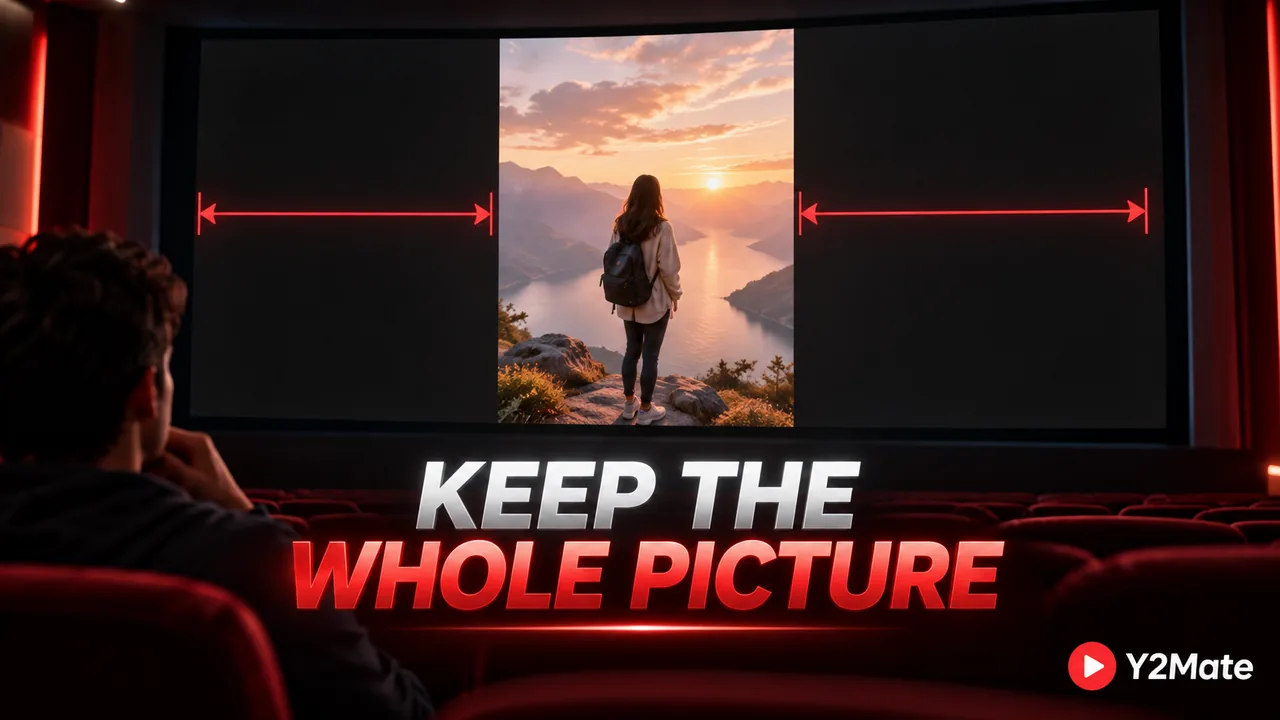
The key distinction is between the shape of the recorded picture and the shape of the player. A portrait image and a widescreen display cannot fill each other completely without adding space, cropping the image, or distorting it. Understanding that choice is more useful than repeatedly downloading the same source at a higher resolution.
Start with the shape, not the pixel count
Aspect ratio describes width compared with height. A common portrait video has a 9:16 shape, while a widescreen television usually has a 16:9 shape. Those are almost opposite compositions: one is tall and narrow, the other wide and low.
Resolution describes the number of pixels. Increasing resolution can provide more detail when the source and output support it, but it does not automatically change the picture's proportions. A sharper portrait recording is still a portrait recording. The article on choosing MP4 resolution addresses detail and device needs separately.
For example, a dancer filmed head to toe on a phone may occupy a narrow central frame. On a wide display, showing that entire body without distortion leaves space on both sides. Those side areas are often called pillarboxing. They are different from the horizontal bars you might see above and below an unusually wide film.
Find out whether the bars belong to the player or the file
A player can add empty space around a video to fit its window. Resize that window or rotate a phone and the surrounding area may change. The picture itself has not been edited; the player is simply finding a place for it inside a differently shaped display.
Bars can also be baked into the video frames. Someone may have placed a tall clip inside a wide canvas before uploading it. In that case, the resulting file can be widescreen even though the useful image occupies only its center. Changing player size will not remove pixels that are already part of the recording.
Compare the downloaded file with the original video and inspect its dimensions if your player shows them. A tall file with changing side padding suggests a display-fit issue. A wide file containing permanent side panels suggests those panels were included earlier. Neither observation alone proves that conversion changed the source.
Fit and fill make different compromises
A Fit setting generally keeps the entire picture visible. That protects captions at the bottom, hands at the edge of a demonstration, and a speaker's head near the top. The tradeoff is unused screen space when the picture and display have different proportions.
A Fill or zoom setting makes the picture occupy more of the screen by cutting away part of it. A tall clip can lose substantial content at the top and bottom when enlarged to fill a wide television. Stretching instead of cropping can make circles look oval and people look unnaturally wide.
- Use Fit when preserving the full demonstration matters most.
- Preview Fill carefully before accepting missing edges.
- Avoid stretching when accurate proportions are important.
- Check visible text and faces after changing the display mode.
A little empty space is often the correct result, especially for exercise instructions, sign language, diagrams, or a performance whose framing was deliberate. Full-screen coverage is not automatically better playback.
Do not confuse rotation with cropping
A sideways recording needs a different decision from an upright portrait clip. Rotation turns the image; it does not make a correctly oriented tall composition become a naturally wide one. Rotating an already upright person merely places them on their side.
If a file genuinely opens sideways, the instructions for rotating a downloaded video explain a separate editing workflow on Mac. Work on a copy. Do not expect a download form to provide aspect-ratio or rotation controls unless those controls are actually offered.
For your own source video, deciding on the final viewing shape before filming is usually more useful than repairing the composition afterward. A shot designed for a phone screen may need a different camera position for a television. Cropping can remove information, but it cannot reveal scenery that was never recorded.
Choose the file for the intended screen
Use the YouTube to MP4 workflow to inspect the video choices available for an authorized source. After saving, test the file on the screen you actually intend to use. Check its orientation, visible edges, and player-fit setting before deciding that another download is necessary.
If the full picture is present and plays correctly, side bars may simply be the honest way to display it. Keeping the original framing is often a better result than filling every inch of the screen at the expense of the content.