Read a Video File's Details in QuickTime Movie Inspector
A filename such as lesson-final.mp4 tells you less about a video than you might expect. It does not establish the resolution, frame rate, audio format, or HDR properties of the saved copy. After downloading an authorized file with Y2Mate, QuickTime Movie Inspector can help a Mac user read those details without editing the recording.
This is a useful first step when two copies look different, one plays less smoothly, or you are unsure which file belongs in a presentation. Inspection is not a repair operation. It gives you a clearer description of what you have before you decide whether anything needs changing.
Open the actual local file
Wait for the browser download to finish, then locate the file in Finder. Open that file in QuickTime Player rather than returning to the source's browser tab. Otherwise, you may be checking platform playback rather than the media stored on your Mac.
With the movie open, choose Window, then Show Movie Inspector. The Command-I shortcut opens the same information window. Available fields depend on the file and the QuickTime version, but the inspector can show properties such as format, dimensions, frame rate, data size, data rate, and supported HDR information.
If QuickTime cannot open the file, do not assume that changing its extension will help. A format may be unsupported, the download may be incomplete, or the file may not be the expected media. Establish the basic file identity before looking for advanced properties in a player that cannot read it.
Read dimensions and frame rate separately
Dimensions describe the frame's width and height. They help distinguish a portrait video from a landscape one and show how much spatial detail the encoded picture can contain. They do not prove that the source was recorded at that resolution or that all of those pixels contain useful detail.
Frame rate describes the timing of frames, usually shown in frames per second. A file with more frames per second is not necessarily sharper. A slide recording can have clear text at a modest frame rate, while a fast demonstration makes motion handling more important. The 30 FPS and 60 FPS comparison explains those tradeoffs.
For example, suppose you have two authorized copies of your own workshop: one is a tall phone recording and the other is a wide screen capture. Inspector details can confirm their different dimensions. That is more reliable than assuming the two filenames describe the same composition.
Understand format, size, and data rate
The format information can identify compression used for video and audio. A container such as MP4 is not the same as the codec used inside it. Two files with the same extension can therefore behave differently in another app or on another device.
Data size describes how much storage the file occupies. Data rate describes the amount of data used over time. Neither number is a universal quality score: a complex action scene, a mostly static lecture, and a heavily compressed copy can have different relationships between size and visible quality.
- Use dimensions to understand the frame, not to certify the camera's original resolution.
- Use frame rate to describe timing, not playback speed or guaranteed smoothness.
- Use format information to investigate compatibility.
- Use size and duration together when comparing storage requirements.
- Listen to the audio as well as reading its listed format.
The existing explanation of video containers and codecs provides context when a familiar extension contains an unfamiliar compression name. You do not need to change anything merely because the inspector displays technical terminology.
Use HDR information as a clue
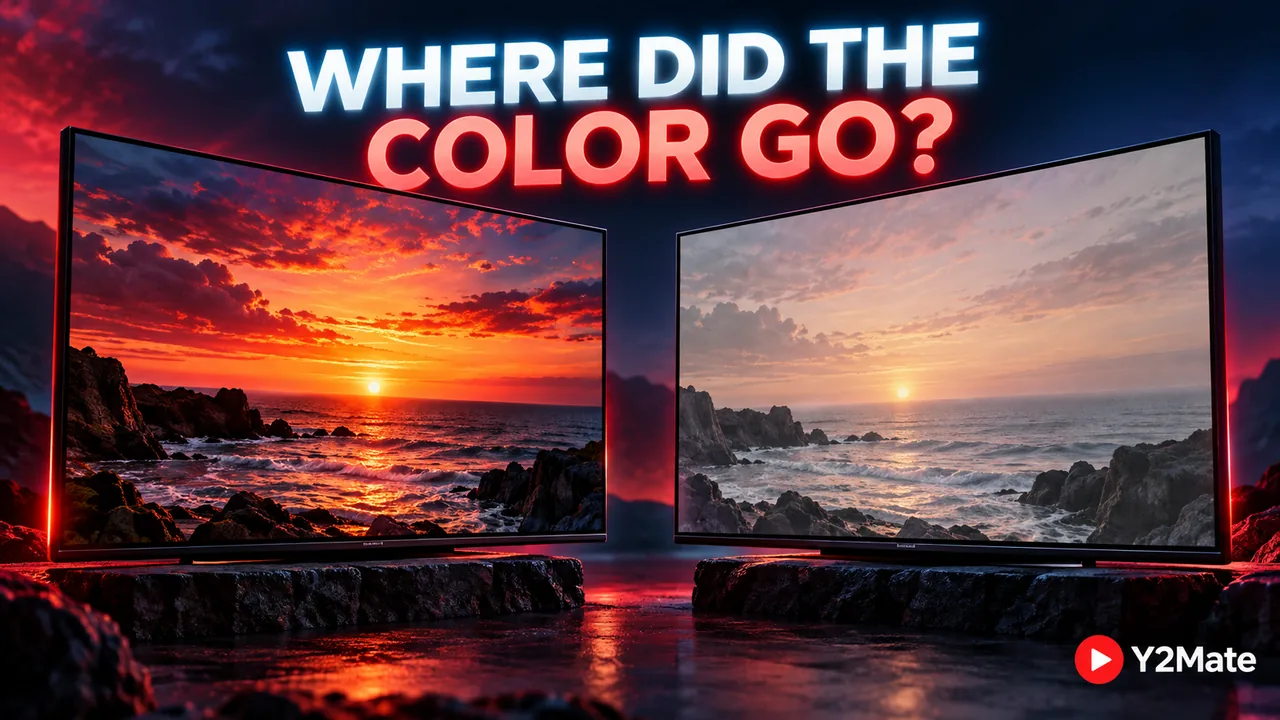
Where available, HDR and color details can help explain why a local file differs from its browser preview. They describe part of the playback requirements, not a promise that every connected display will reproduce the video in the same way. Player support and display settings remain relevant.
If the picture looks flat or unusually dark, keep a note of the properties and compare the same scene using a compatible playback path. The article on washed-out HDR video explains why adjusting brightness or downloading a higher resolution is not automatically a solution.
Do not edit metadata just to make it match another file's inspector window. Two recordings can legitimately have different technical properties. The goal of inspection is to understand those differences, not to make every field look identical.
Turn the details into a clear decision
Write a short comparison note if you are choosing between copies: filename, duration, dimensions, relevant format information, and the device where each played successfully. Avoid copying long file paths or personal folder names into a public support message when a simple description is enough.
Then test the file in the app or device you actually intend to use. QuickTime opening it successfully is useful evidence about QuickTime on that Mac, not proof of universal compatibility. Inspection also cannot establish copyright permission, authenticity, or whether a file is harmless.
By checking the saved media before editing or downloading again, you can make a specific choice: keep the working copy, select a supported alternative, or investigate a clearly identified property. That is more efficient than guessing from an extension or treating every larger file as an upgrade.