Why an HDR Video Can Look Washed Out After Downloading
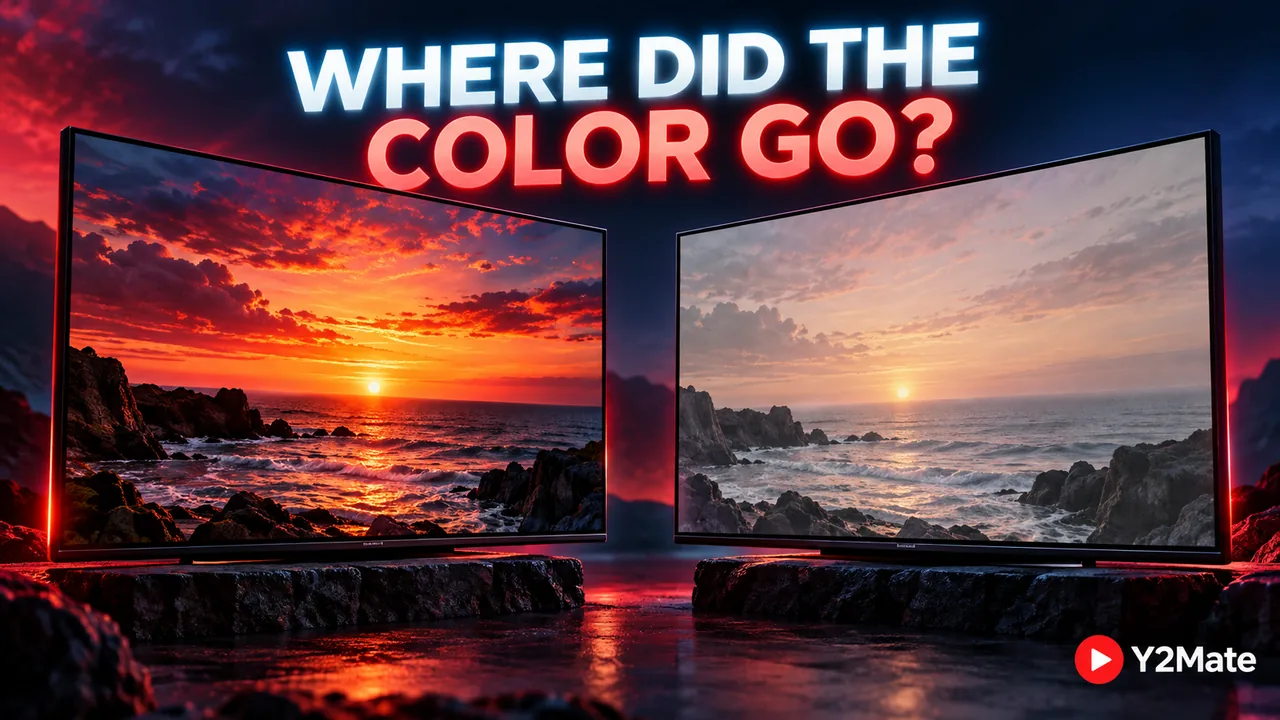
If a downloaded video looks gray, flat, unusually dark, or different from its YouTube preview, the problem may involve HDR playback rather than the file's resolution. After using Y2Mate, check the saved file, player, and display as a chain before assuming that another high-resolution download will restore the expected colors.
HDR, or high dynamic range, concerns how a video represents and displays brightness and color. It is not simply a filter that makes every picture brighter. A file can have many pixels and still look wrong when its color information is interpreted in an unsuitable way.
Why HDR needs more than a compatible extension
A video file contains encoded picture information and may carry metadata describing how that information should be interpreted. The player and display need to handle the relevant color characteristics correctly. An MP4 filename alone does not tell you whether that whole playback path supports the source's HDR format.
The source platform can also choose an appropriate version for its own player. Watching a video on YouTube is therefore not always the same technical situation as opening a downloaded file in a desktop application. The browser, platform processing, device settings, and available display capability can all differ between those two experiences.
When HDR material needs to be shown on a standard dynamic range display, suitable conversion or tone mapping matters. Simply increasing brightness is not the same operation. It can make already bright areas harder to see while leaving colors or contrast incorrect.
Make a controlled comparison
Start with one recognizable scene, such as a sunset with detail in both the sky and the dark foreground. Compare that same moment in the source and the local file on the same device. Keep the room lighting and display brightness similar so that you are not comparing several unrelated changes at once.
Check whether the source player actually identifies the selected version as HDR where that information is available. Do not rely on “HDR” written in a video's promotional title. A title can describe the creator's intention without proving the properties of the version currently playing or the file you saved.
- Confirm the local download has completed and opens normally.
- Compare the same scene, not two different parts of the video.
- Inspect the file's available color and codec information.
- Check the player and display support for those characteristics.
- Try a supported playback path before modifying the file.
On Mac, the instructions for reading QuickTime Movie Inspector explain where supported file properties appear. Missing or unfamiliar information is a reason to investigate further, not a reason to guess at a new extension.
Keep resolution separate from color handling
A move from 720p to 1080p changes potential spatial detail. It does not automatically correct an HDR interpretation problem. You may obtain a larger file with the same flat-looking colors if the underlying playback mismatch remains.
Similarly, a different codec can alter compatibility without proving that the color problem is resolved. Container, codec, color metadata, and display support are related but distinct parts of the file's journey. The container and codec explanation is useful when a format name is being treated as a complete description of playback.
Do not remove or rewrite HDR tags just to make a player label disappear. Metadata describes how encoded values should be read; changing a label without properly converting those values can create another mismatch. Preserve the original file while exploring a supported solution.
Choose a practical version for your device
If a download interface genuinely offers a suitable SDR version, that may be a practical choice for an SDR-only workflow. Check the real option rather than assuming every provider supplies both variants. This page does not promise an HDR-to-SDR control or specific color-format selection in Y2Mate.
For your own footage, a trusted editor can prepare an export suited to the intended display, using an actual color-management workflow. That is different from renaming the file or applying a quick brightness adjustment. Keep a short representative test export until you are satisfied with its appearance before processing a long recording.
If you are viewing someone else's authorized material, avoid describing an altered version as a faithful color reference unless you have verified that claim. A converted copy may be perfectly useful for watching a lesson while still being unsuitable for judging a creator's original grading decisions.
Know when another download is useful
Return to the YouTube to MP4 options when you have identified a specific supported alternative to try. Repeatedly saving the same file is unlikely to change how the same player interprets it. A clear comparison and a compatible playback path are more informative than a series of larger downloads.
The goal is not to make every scene artificially vivid. It is to display the intended image through a workflow that understands its color information. Preserve your original, change one variable at a time, and judge the result from the actual saved file on the screen you plan to use.