30 FPS or 60 FPS: What Changes in a Video Download?
Thirty frames per second and sixty frames per second describe how frequently a video shows a new frame. They do not tell you its resolution, sound quality, or overall usefulness. When comparing video options through Y2Mate, choose from what is actually offered and consider the motion in the source rather than assuming the larger number always wins.
A talking-head interview, a football demonstration, and a slow landscape shot place different demands on motion. The best choice depends on how the video was recorded, how it was processed, and where you will watch the saved file. Frame rate is one part of that decision.
Think of frames as moments in time
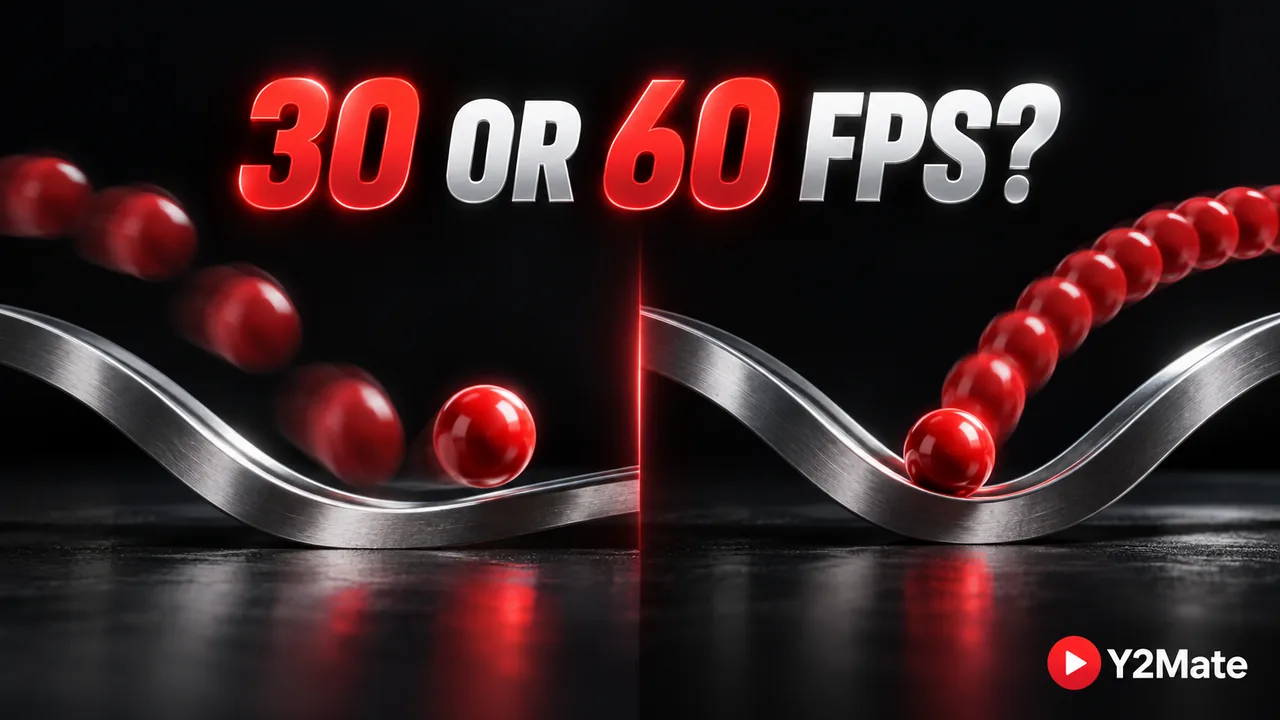
A video is a sequence of pictures shown quickly enough to create moving imagery. At 30 FPS, a second contains thirty frames. At 60 FPS, it contains sixty. When the source genuinely records more distinct moments, fast movement can appear more fluid because the gaps between those moments are smaller.
Imagine a red ball moving across a table. A sequence with more genuinely different positions can describe that movement more closely. However, writing the same position into extra frames does not recover positions that were never recorded. A higher frame-rate label alone is not proof of more original motion detail.
Motion blur also affects the appearance of movement. Lighting, shutter choices, stabilization, and the way the scene was filmed all contribute. Two files with the same frame rate can therefore look quite different. Avoid judging the complete image from one specification printed beside a download option.
Frame rate and resolution answer different questions
Resolution concerns the dimensions of each frame. Frame rate concerns how often frames occur. A 1080p file can use different frame rates, and a higher frame rate does not automatically make small text easier to read. A detailed still slide may benefit more from adequate dimensions than from additional frames every second.
Conversely, a fast-moving demonstration can make motion differences noticeable even when two files have the same dimensions. The right comparison keeps other factors in mind: the same source, similar viewing conditions, and the same intended player. Comparing unrelated videos cannot establish which frame-rate option is better for your specific recording.
Read the 720p and 1080p comparison when your main question is visible detail. It helps separate screen-size decisions from the temporal differences discussed here.
The source sets an important limit
If the original material was captured at thirty frames per second, a sixty-frame output cannot automatically create genuine missing camera frames. Processing may repeat or estimate images, but that is not equivalent to having recorded those moments. Do not interpret an output number as evidence of how the camera operated.
YouTube's upload guidance recommends retaining the recording's frame rate rather than arbitrarily changing it. That guidance concerns creators preparing uploads; it does not establish the formats a third-party download provider offers. Use the source information and the actual result together rather than turning an upload recommendation into a conversion guarantee.
Likewise, choosing an MP4 container does not determine frame rate by itself. MP4 describes how compatible media is packaged, while the video stream has its own properties. If the interface does not offer a frame-rate choice, this article does not imply that a hidden selector exists.
Check storage and playback in context
More frames can increase the amount of information an encoder has to represent, but the exact file size depends on compression settings and the content. Do not assume that sixty frames always means exactly twice the file size. Read the offered size where available and leave practical room on your device.
- For lectures with mostly static slides, prioritize legibility and complete audio.
- For movement demonstrations, compare a representative moving section.
- For older hardware, verify that the actual file plays smoothly.
- For limited storage, compare real file sizes rather than calculating from FPS alone.
A player that stutters is not proof that the source frame rate is wrong. Device workload, codec support, storage performance, and the player itself can affect playback. Test a completed local file before attributing every pause to the internet connection.
Inspect the saved result
A file-information panel can reveal the frame rate and dimensions actually present. On a Mac, QuickTime Movie Inspector provides a useful read-only view. These properties describe the file, not a guarantee that every frame contains unique visual information.
Play a section that represents your intended use. Watch the movement, read any small text, and listen for complete sound. There is little value in choosing a technically ambitious file if the device you use cannot play it comfortably or the source does not contain the extra detail you expected.
Return to the YouTube to MP4 page when you need an available video download for material you may save. Treat 30 FPS and 60 FPS as different technical choices, not a universal ranking. A well-matched file is the one that preserves the useful content and works on your intended screen.